
Article At A Glance
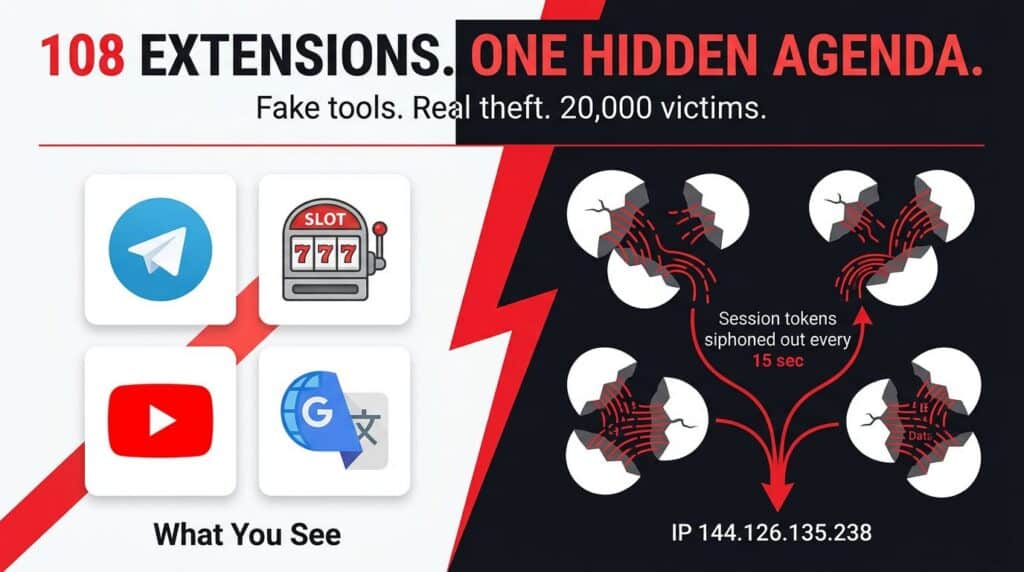
- 108 malicious Chrome extensions were discovered communicating with a single command-and-control server, collectively affecting over 20,000 users across enterprise environments.
- The extensions targeted Google account credentials via OAuth2, Telegram web sessions, and AI chat data from platforms like ChatGPT and DeepSeek.
- Five publisher identities were used to disguise the extensions as legitimate tools — a tactic that helped them slip past Chrome Web Store review processes.
- Extensions using Chrome’s declarativeNetRequest API actively stripped security headers from websites before pages even loaded, leaving users completely exposed without any visible warning.
- Keep reading to find out exactly how to check if any of these extensions are on your browser right now — and what to do if they are.
108 Chrome Extensions Just Got Caught Stealing Your Data
Your browser extensions might be the most dangerous software you’ve never thought twice about. A newly uncovered cluster of 108 Google Chrome extensions has been caught quietly siphoning user data, injecting ads, and opening unauthorized URLs — all while appearing completely harmless in the Chrome Web Store.
Security researchers identified this coordinated campaign after noticing that all 108 extensions were communicating with the same backend infrastructure, hosted at IP address 144.126.135[.]238. That kind of shared command-and-control (C2) setup is a strong indicator of a single, organized threat actor operating at scale. Obsidian Security, which tracks browser-based threats across enterprise environments, has been covering the growing wave of extension-based attacks — and this campaign is one of the most coordinated seen to date.
What Data Was Stolen and From Where
The stolen data spans multiple platforms and account types. The extensions targeted Google account identities through OAuth2 token abuse, Telegram web session cookies, full browsing URLs, and AI chat content from platforms including ChatGPT and DeepSeek. For enterprise users, this meant proprietary source code, internal workflows, strategic business discussions, and other highly sensitive information was being quietly collected and transmitted to external servers — with zero notification to the user.
How Many Users Were Affected
The campaign directly impacted over 20,000 users, with the reach extending across enterprise tenants. Given that many of the extensions were disguised as productivity tools and AI assistants — categories that see high installation rates in corporate environments — the actual exposure window was significant. A single compromised extension installed across an organization’s browser fleet can function as a persistent, embedded data collection mechanism at scale. This is reminiscent of other enterprise AI solutions that have been scrutinized for their security implications.
How These Extensions Actually Work
These weren’t simple, sloppy scripts. The 108 extensions used a layered approach to data theft, combining multiple Chrome APIs with obfuscated code to carry out their operations while appearing functional to the end user. Understanding the mechanics helps explain why they were so effective — and why standard antivirus tools won’t catch them.
The attack surface here is the browser itself. Chrome extensions run with elevated permissions that most users grant without reading. Once installed, they have access to everything you do inside that browser window — every page you visit, every form you fill out, every session token stored in your cookies.
The Shared Command-and-Control Server Behind All 108 Extensions
All 108 extensions reported back to the same C2 server at 144.126.135[.]238. This single point of coordination is what allowed researchers to link the entire cluster together as one campaign. From a threat intelligence standpoint, shared infrastructure is one of the clearest fingerprints of an organized operation rather than isolated bad actors.
The C2 server received stolen data, issued behavioral instructions to the extensions, and served as the hub for injected ad content. Here’s what each category of extension was doing:
- 54 extensions stole Google account identity using OAuth2 token harvesting
- 45 extensions contained a universal backdoor that automatically opened arbitrary URLs every time the browser launched
- 5 extensions used Chrome’s declarativeNetRequest API to strip security headers from websites before pages loaded
- The remaining extensions engaged in ad injection, JavaScript manipulation, and session cookie theft
How They Strip Security Headers From Websites
The five extensions using Chrome’s declarativeNetRequest API represent the most technically sophisticated element of this campaign. By stripping HTTP security headers — like Content-Security-Policy (CSP) and X-Frame-Options — before a page finished loading, these extensions disabled the browser’s built-in defenses against cross-site scripting and clickjacking. The user saw a normal-looking website while the page’s security architecture had already been quietly dismantled underneath them. For more on similar threats, see how spoofed VPN sites harvest corporate logins.
How Ads and Malicious JavaScript Get Injected Into Every Page You Visit
Beyond data theft, several extensions in the cluster performed ad injection — inserting unauthorized advertisements into web pages the user was browsing. This isn’t just annoying; it’s a secondary revenue stream for the threat actor and a delivery vector for additional malicious JavaScript payloads.
Once an injected script runs in the context of a page, it inherits that page’s trust level in the browser. That means a script injected into your Gmail session, for example, can read your emails, access your contacts, and interact with the page as if it were you. The extensions didn’t need to break into Google’s servers — they just needed to be running inside your browser while you were already logged in.
The Universal Backdoor That Opens Malicious URLs on Browser Start
Forty-five of the 108 extensions contained a backdoor trigger that fired the moment Chrome launched. Every time you opened your browser, these extensions silently instructed Chrome to load arbitrary URLs in the background — URLs controlled entirely by the attacker’s C2 server. This means the attack didn’t require you to visit a specific site or click anything suspicious. Simply opening Chrome was enough to initiate contact with the attacker’s infrastructure and potentially load phishing pages, ad fraud destinations, or additional malware delivery points.
The 5 Publisher Identities Used to Hide These Extensions
One of the most telling signs of an organized campaign is the use of multiple fake publisher identities to distribute malicious extensions. Rather than clustering everything under one account — which would make takedowns faster and easier — the threat actor spread the 108 extensions across five separate publisher identities on the Chrome Web Store. Each identity had its own branding, extension portfolio, and presentation designed to look like a legitimate small software developer.
1. Yana Project
Yana Project was one of the publisher identities used to distribute extensions in this cluster. Extensions published under this identity were designed to appear as general-purpose browser utilities, giving them broad appeal and a higher likelihood of installation by users looking for lightweight productivity tools. This tactic is similar to those used in other cyberattacks, such as the credit card stealer hidden with pixel large SVG trick by hackers.
The use of a project-style name was deliberate — it signals an ongoing development effort rather than a one-off tool, lending a false sense of legitimacy and active maintenance to what were actually static data-harvesting payloads.
2. GameGen
GameGen targeted a different user demographic by positioning its extensions as gaming-adjacent tools. Gaming utilities are a high-install category on the Chrome Web Store, and users in this space are often less focused on scrutinizing permissions since they expect extensions to need broad access for functionality like overlay tools or stream enhancements.
3. SideGames
SideGames operated in a similar space to GameGen, reinforcing the pattern of targeting gaming communities. By splitting gaming-themed extensions across two separate publisher identities, the threat actor reduced the risk of a single account takedown wiping out the entire gaming-focused distribution channel, similar to the tactics seen in Storm-2561’s spoofed VPN sites.
This kind of redundancy is a hallmark of professional threat operations — not amateur malware authors. The deliberate segmentation shows operational planning that goes beyond a simple grab-and-run scheme.
4. Rodeo Games
Rodeo Games was the third gaming-themed publisher identity in the cluster, further reinforcing just how deliberately the attacker targeted this user base. With three separate publisher accounts dedicated to gaming tools alone, it’s clear this demographic was considered a high-value installation target.
Extensions under Rodeo Games followed the same technical architecture as the rest of the cluster — reporting back to 144.126.135[.]238, stripping security headers where applicable, and harvesting session data in the background while presenting a functional-looking interface to the user.
Publisher Identity Primary Disguise Key Behavior Yana Project Browser utilities Data harvesting, ad injection GameGen Gaming tools OAuth2 token theft, backdoor URLs SideGames Gaming tools Session cookie theft, C2 communication Rodeo Games Gaming tools Security header stripping, data exfiltration InterAlt Alternative productivity tools Universal backdoor, URL injection
5. InterAlt
InterAlt rounded out the five publisher identities by targeting productivity-focused users. Extensions under this name positioned themselves as alternative tools for common workflows — the kind of lightweight add-ons professionals install to streamline their day. This made InterAlt extensions particularly dangerous in enterprise environments, where productivity tools are installed with minimal vetting and broad browser permissions are accepted as standard.
The AI Tool Extensions Stealing ChatGPT and DeepSeek Data
Beyond the five publisher identities, researchers at OX Security identified a separate but related pattern of malicious extensions impersonating AI assistants. One standout example is the extension originally named ChatGPT Extension (extension ID: dcbcnpnaccfjoikaofjgcipcfbmfkpmj), later renamed H-Chat Assistant, which was found impersonating ChatGPT and actively stealing OpenAI API keys. Another pair — 100,000 ChatGPT Extension (ID: mehpokgiebgcnelgnlfkeldlfnpdhdha) and AI GPT (ID: kblengdlefjpjkekanpoidgoghdngdgl) — engaged in prompt poaching and impersonation across an estimated 375 to 20,000 users per extension.
What Enterprise Data Was Exposed Across 20,000 Tenants
The AI-targeted extensions collected full conversation content from ChatGPT and DeepSeek sessions — not just metadata, but the actual text of every prompt and response. For enterprise users, those conversations routinely contain proprietary source code, unreleased product roadmaps, internal financial discussions, legal strategy, and client data. Once that content leaves the browser and hits an attacker-controlled server, there is no way to un-expose it. The damage is permanent, and in many cases, organizations won’t even know it happened until the data surfaces elsewhere.
Why AI Assistants Are a Prime Target for Browser-Based Attacks
AI chat platforms are uniquely valuable targets because users treat them like a trusted private interface. People type things into ChatGPT that they would never send in an email — sensitive business questions, internal document drafts, API credentials pasted in for debugging help. That behavioral trust makes AI assistant sessions an exceptionally high-value target for any attacker who can get a malicious extension sitting between the user and the interface.
The attack doesn’t require breaking encryption or compromising OpenAI’s servers. It only requires an extension with permission to read page content running in the same browser tab. That’s a disturbingly low bar — and it’s exactly the bar these extensions cleared by simply being installed.
How to Check If You Have These Extensions Installed
Checking your installed Chrome extensions takes less than 60 seconds and should be the first thing you do after reading this. Open Chrome and type chrome://extensions into the address bar. This will show you every extension currently installed and active in your browser. Look for anything you don’t recognize, anything with unusually broad permissions, or any extension name that closely mimics a legitimate tool like ChatGPT or a popular gaming utility. Pay specific attention to extensions published by Yana Project, GameGen, SideGames, Rodeo Games, or InterAlt — if any of those publisher names appear, remove those extensions immediately.
How to Remove a Malicious Extension From Chrome
Removing a malicious extension is straightforward, but the order of steps matters. Don’t just disable it — fully uninstall it, then clear your browser data immediately after.
- Open Chrome and navigate to chrome://extensions
- Locate the suspicious extension in your list
- Click Remove — not just the toggle to disable it
- Confirm the removal in the dialog box that appears
- Go to Settings → Privacy and Security → Clear Browsing Data
- Select Cookies and other site data and Cached images and files
- Set the time range to All time and click Clear data
- Restart Chrome completely before logging into any sensitive accounts
Clearing cookies after removal is critical because the extension may have already planted session tokens or tracking identifiers that persist even after the extension itself is gone. Skipping this step means the data collection infrastructure may still have an active thread back to your sessions. After restarting, change passwords for any accounts you accessed while the extension was installed — especially Google, Telegram, and any AI platforms.
How to Log Out of All Telegram Web Sessions From Your Phone
If you used Telegram Web while any of these extensions were installed, your session cookie may have already been harvested. Logging out of all active web sessions through the Telegram mobile app is the fastest way to invalidate any stolen session tokens. Open the Telegram app on your phone, go to Settings → Privacy and Security → Active Sessions. You’ll see a list of every device and web session currently logged into your account. Tap Terminate All Other Sessions to immediately invalidate every active web session, including any that an attacker may be maintaining using a stolen cookie. Do this even if you don’t see anything suspicious — stolen session tokens allow silent access that won’t show obvious signs of intrusion.
How to Check If Your Google Account Was Compromised
Google provides a dedicated security dashboard that shows every recent login, connected third-party app, and OAuth2 authorization tied to your account. Go to myaccount.google.com/security and review the Recent Security Activity section. Look for any sign-ins from unfamiliar locations or devices, especially any that occurred while you had a suspicious extension installed.
Next, scroll to Third-party apps with account access and audit every OAuth2 authorization listed there. The 54 extensions in this cluster that used OAuth2 identity theft would have generated an authorization entry in this list. If you see any app you don’t recognize — or any that claims to be a Google service but looks slightly off — revoke its access immediately by clicking on it and selecting Remove Access.
Finally, enable Google’s Advanced Protection Program if you haven’t already, especially for enterprise or high-value personal accounts. It adds hardware security key requirements that make OAuth2 token theft significantly harder to exploit, even if an attacker manages to obtain a token through a compromised extension in the future.
Remove These Extensions Now Before More Data Is Stolen
Every minute these extensions remain installed is another minute of active data collection. The 108 extensions identified in this campaign weren’t passive — they were continuously communicating with a live C2 server, harvesting session data, stripping security headers, and in 45 cases, opening attacker-controlled URLs every single time Chrome launched. If you recognized any publisher names, extension IDs, or behavioral descriptions from this article, treat your browser as compromised until you’ve completed every removal and remediation step outlined above.
Obsidian Security continues to track browser extension-based threats across enterprise environments, and the pattern is clear: extensions are the new phishing email. They require the same level of scrutiny, the same zero-trust mindset, and the same swift action when something looks wrong. Audit your extensions today.
Frequently Asked Questions
How Did 108 Malicious Extensions End Up on the Chrome Web Store?
The Chrome Web Store uses automated review systems combined with periodic manual checks, but this process has well-documented gaps. The threat actors behind this campaign specifically designed their extensions to appear functional and legitimate at the point of submission — the malicious behaviors were either obfuscated within the code or activated only after installation via instructions from the C2 server. By spreading extensions across five separate publisher identities and targeting different user categories like gaming and productivity, the campaign avoided the pattern-matching triggers that might flag a single suspicious account publishing dozens of similar extensions. Google has since removed the identified extensions, but the review gap they exploited remains an ongoing challenge for the platform.
Can These Extensions Steal Data Even If I Don’t Click Anything?
Yes — and that’s what makes this category of attack particularly dangerous. Extensions with permission to read page content operate passively in the background of every tab you open. You don’t need to click a link, open an attachment, or visit a suspicious website. The act of simply browsing while the extension is installed is enough for it to read your session cookies, capture page content, and transmit data to the C2 server.
The 45 extensions with the universal backdoor took this even further. They didn’t need you to browse anything at all — just opening Chrome triggered communication with the attacker’s server and initiated the loading of arbitrary URLs. In those cases, the only safe state was having Chrome completely closed and the extension fully uninstalled. For more on similar cybersecurity incidents, read about the emergency patch for FortiClient EMS flaw that was exploited in attacks.
What Should I Do If I Already Had One of These Extensions Installed?
Start by removing the extension immediately using the steps outlined above, then clear all cookies and cached data for the All time range. After that, change passwords for every account you accessed through Chrome while the extension was installed — prioritizing Google, Telegram, OpenAI, and any financial or work-related platforms. Check your Google account’s OAuth2 authorizations at myaccount.google.com/security and revoke anything unfamiliar. Terminate all active Telegram web sessions from your mobile app. For more information on how hackers exploit vulnerabilities, you can read about the credit card stealer hidden with pixel tricks.
If you’re in an enterprise environment, escalate to your IT security team immediately. A single compromised browser in a corporate fleet can expose shared credentials, internal tools, and confidential communication threads that extend far beyond the individual user’s own accounts. Your security team may need to audit browser extension policies across the entire organization and implement a browser extension allowlist to prevent similar installations going forward.
Are Other Browsers Like Firefox or Edge Also at Risk?
This specific campaign targeted Chrome extensions on the Chrome Web Store, but the underlying attack model — malicious browser extensions harvesting session data and communicating with external servers — is not exclusive to Chrome. Firefox has its own extension ecosystem with similar permission models, and Microsoft Edge supports Chrome extensions directly through its compatibility with the Chromium extension format, meaning many Chrome extensions can be installed on Edge without modification. The safest practice regardless of browser is to install only extensions from developers you can independently verify, audit your installed extensions regularly, and apply the principle of least privilege — if an extension is asking for more permissions than its stated function requires, that’s a red flag worth acting on.
How Can I Safely Install Chrome Extensions Without Getting Infected?
Before installing any extension, check three things: the number of reviews versus the number of installs (a high install count with very few reviews is a manipulation signal), the specific permissions being requested (extensions should only request access relevant to their stated function), and the publisher’s history on the Chrome Web Store including how long the account has been active and what other extensions they’ve published.
Cross-reference any extension you’re considering against independent security research and community forums. If an extension claims to be associated with a major platform like ChatGPT, DeepSeek, or a Google service, verify that claim directly on the official platform’s website before installing. Legitimate companies almost always list their official browser extensions on their own websites — if you can’t find that reference, the extension is likely an impersonator.